To add your htmlsig signature to Gmail, copy it from your signature page, then in Gmail go to Settings > See all settings > General > Signature, paste it in and click Save Changes.
Step 1: Copy your signature
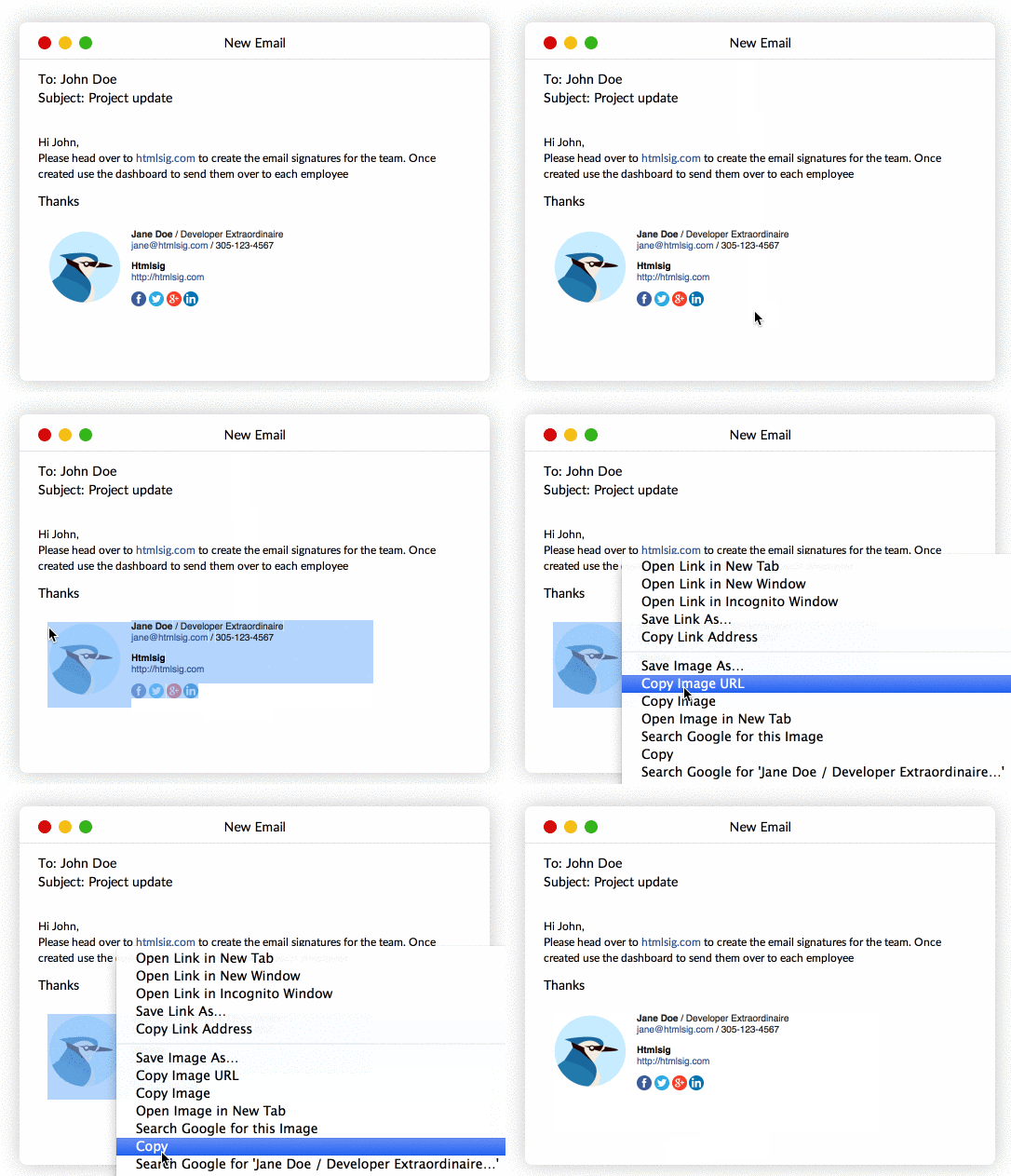
- Open your signature in htmlsig. You can find all of your signatures on the Signatures page.
- Click Open in New Tab. Your signature opens on its own in a new window.
- Select the whole signature (Ctrl+A on Windows, Cmd+A on a Mac) and copy it (Ctrl+C or Cmd+C).
Step 2: Add it to Gmail
- Open Gmail on your computer and click the Settings gear icon in the top-right corner.
- Click See all settings.
- On the General tab, scroll down to the Signature section and click Create new. Give the signature a name.
- Click into the signature box and paste your signature.
- Under Signature defaults, choose your new signature for For new emails use and, if you like, On reply/forward use.
- Scroll to the bottom of the page and click Save Changes.
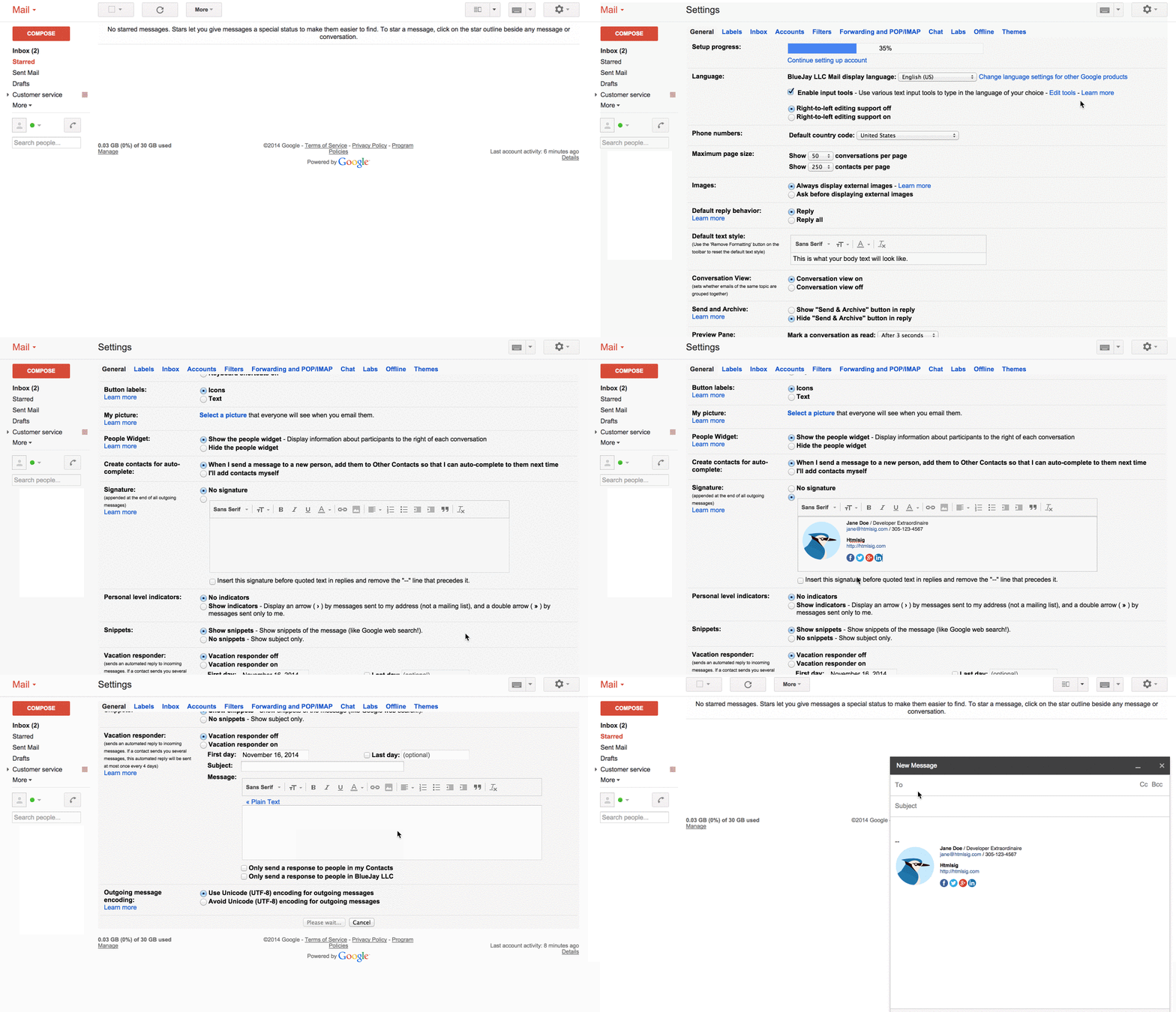
Compose a new email to check that your signature appears.
Why might my signature not fit?
Gmail limits signatures to 10,000 characters, counting the HTML code behind them. You're most likely to hit that limit if your signature has a long disclaimer or more than about 10 social icons, because the code behind a signature is longer than it looks.
Still hitting the limit? See why Gmail says your signature is too long for specific fixes.