Gmail limits signatures to 10,000 characters, and that count includes the HTML code behind your formatting. The most common cause of going over is copying extra page code along with your signature, so first try copying it from the Open in New Tab window on your signature page.
Fix 1: Copy from Open in New Tab
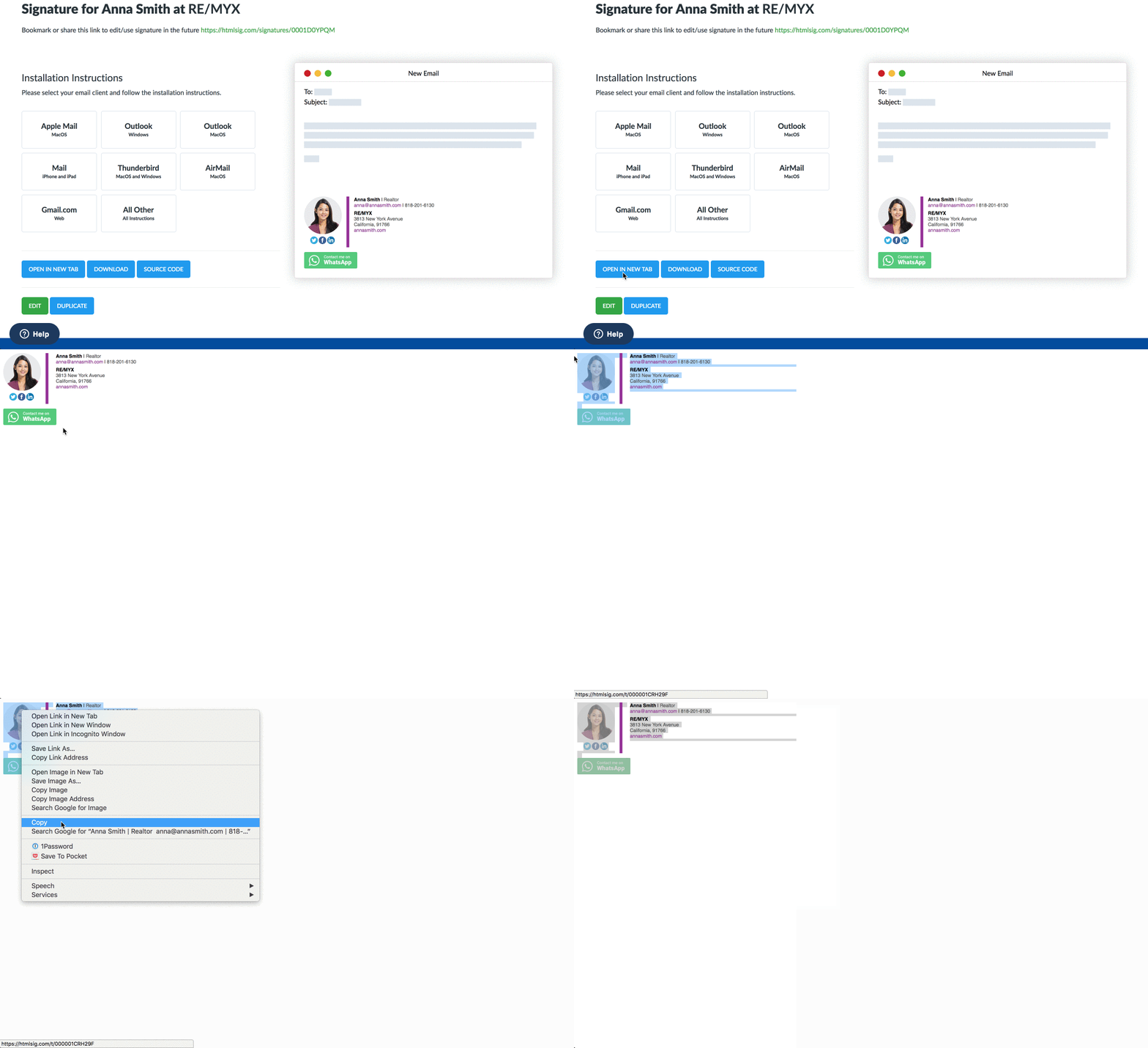
- Open your signature on htmlsig.com.
- Click Open in New Tab below the installation instructions.
- Select the whole signature in the new window and copy it (Cmd + C on Mac, Ctrl + C on Windows).
- In Gmail, clear the old signature and paste the new copy, then click Save Changes at the bottom of the settings page.
Fix 2: Make your signature lighter
If Gmail still says the signature is too long, edit it to use less code:
- Use fewer social icons. Ten or fewer is a good target.
- Shorten or remove your disclaimer.
- Switch to the Basic layout on the Style tab, which uses less code than the other layouts.
- Remove buttons or badges you don't need.
Save your changes and copy the signature into Gmail again.
For the full setup steps, see how to add your signature to Gmail. If htmlsig itself shows a "too long" error when you save, see why it says your text is too long.