If your signature looks wrong in Apple Mail, it's almost always caused by how it was installed: it was copied from Safari, or Always match my default message font was left on. Both are quick to fix.
The layout is off or the icons are huge
Safari can distort a signature when you copy it, making logos and icons oversized and shifting the layout. Open your signature page in Google Chrome or Firefox, click Open in New Tab, copy the signature from there and paste it into Apple Mail again.
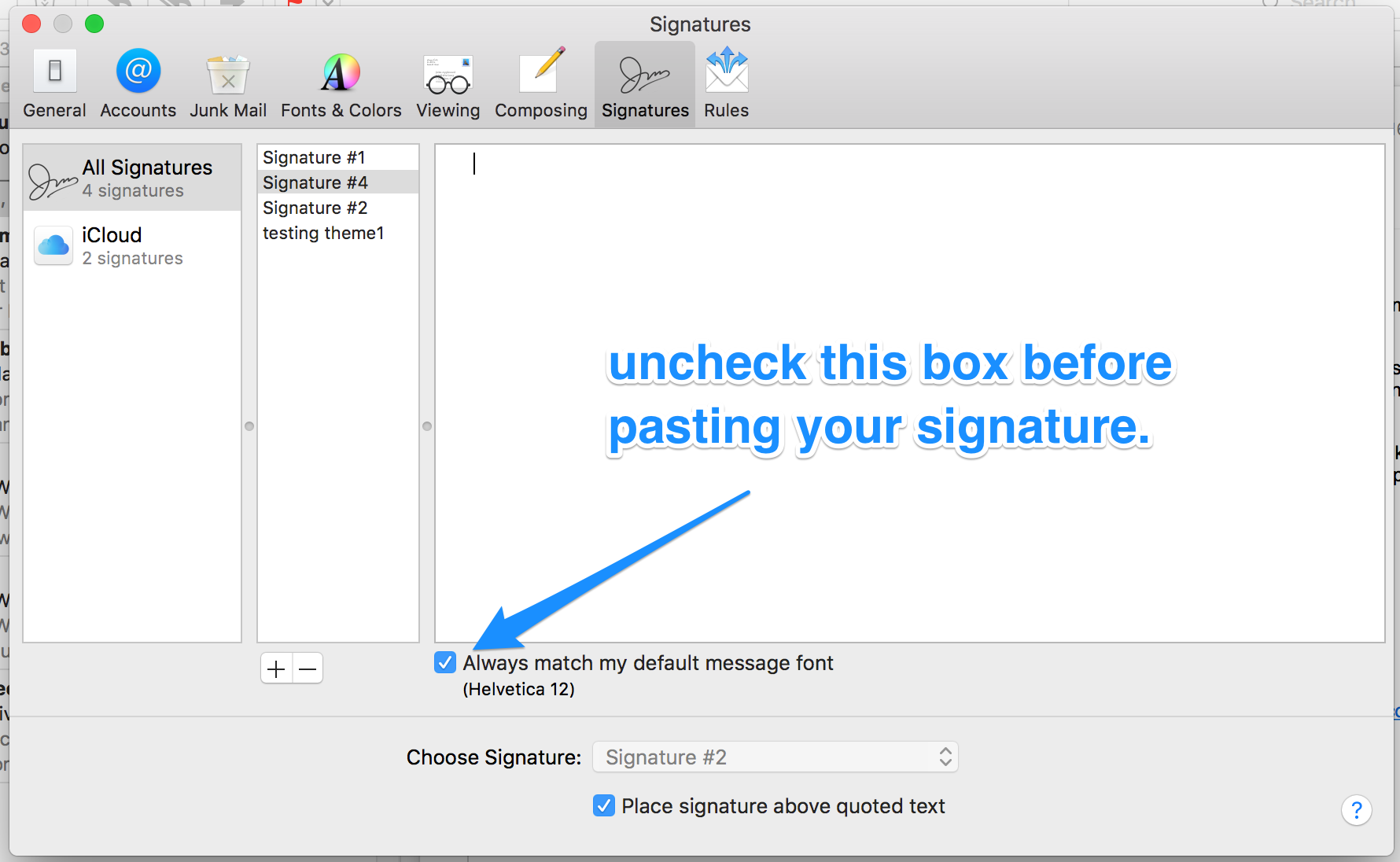
Uncheck "Always match my default message font"
In Mail > Settings > Signatures, uncheck Always match my default message font before you paste your signature. If it's checked, Mail replaces your signature's fonts with its own and the signature can look distorted.
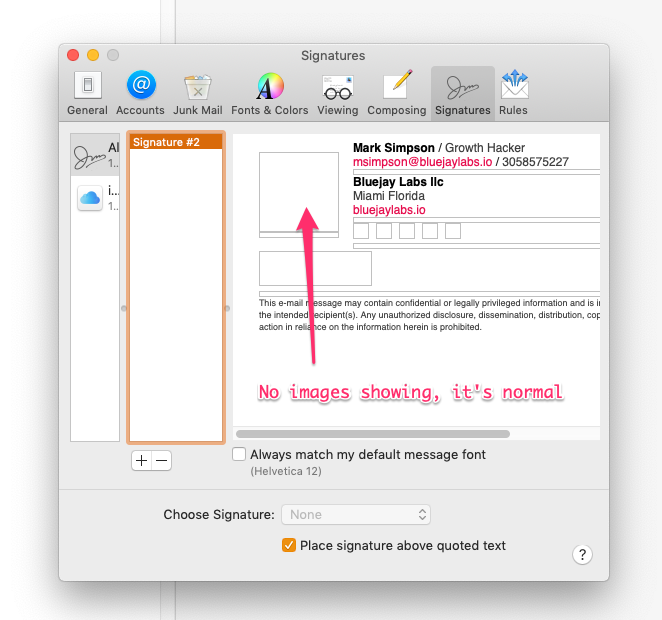
Images don't show in the Signatures settings window
This is normal. The Signatures settings window often shows empty boxes instead of your logo and icons:
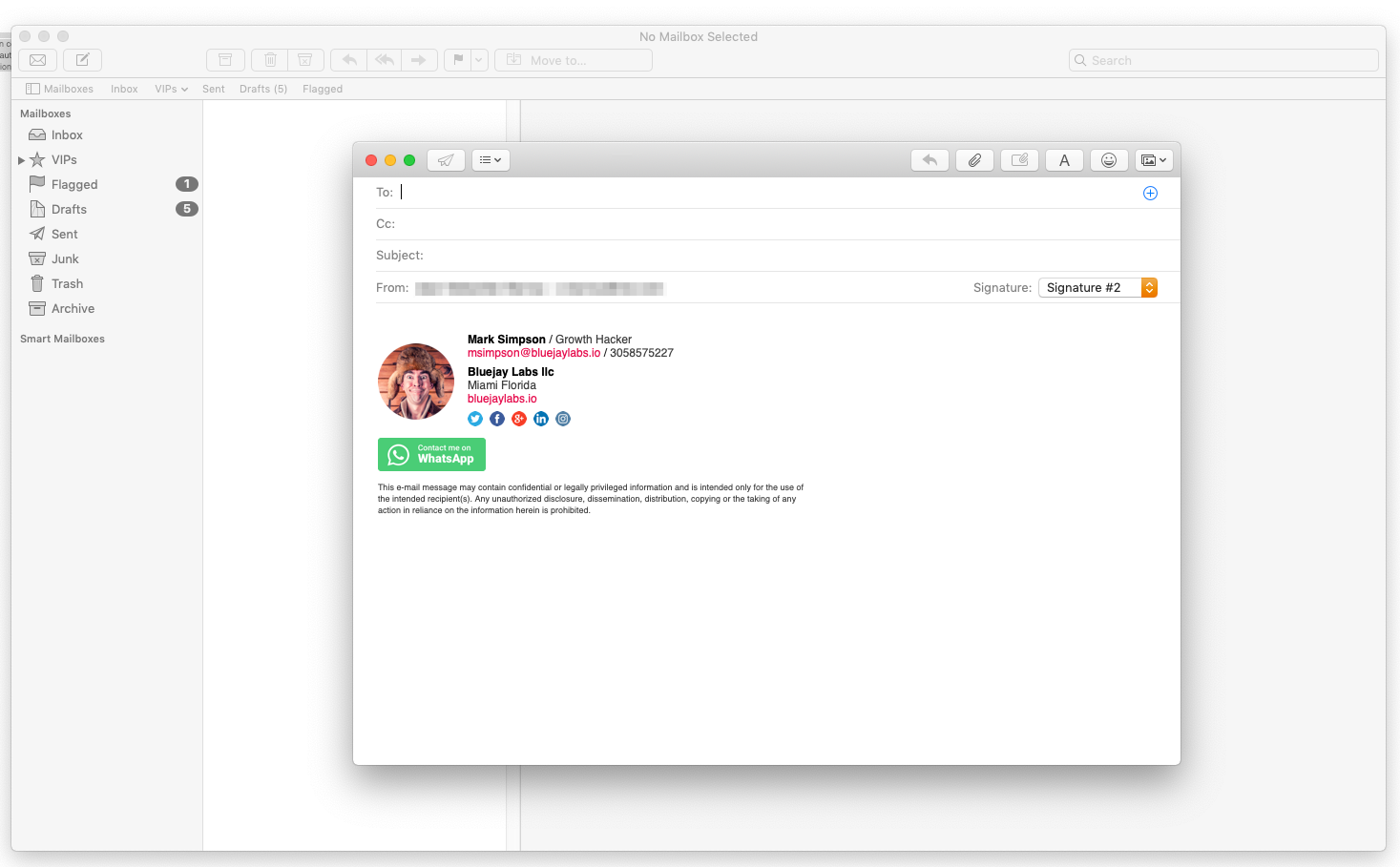
Close the settings window and start a new email. Your images will load there:
If images are missing in new emails too, see signature images not showing in Apple Mail.
For the full setup steps, see how to add your signature to Apple Mail on Mac.