If the logo, banner or icons in your signature don't show up in Apple Mail, it's usually because Apple Mail is blocking remote content. Your signature images are hosted online, so turn off Block All Remote Content and Protect Mail Activity in Mail's privacy settings, then restart Mail.
Check Apple Mail's privacy settings (Mac)
- Open Mail and choose Mail > Settings from the menu bar (called Preferences on older versions of macOS).
- Click the Privacy tab.
- Uncheck Protect Mail Activity.
- Make sure Block All Remote Content is unchecked.
- Quit Mail and open it again.
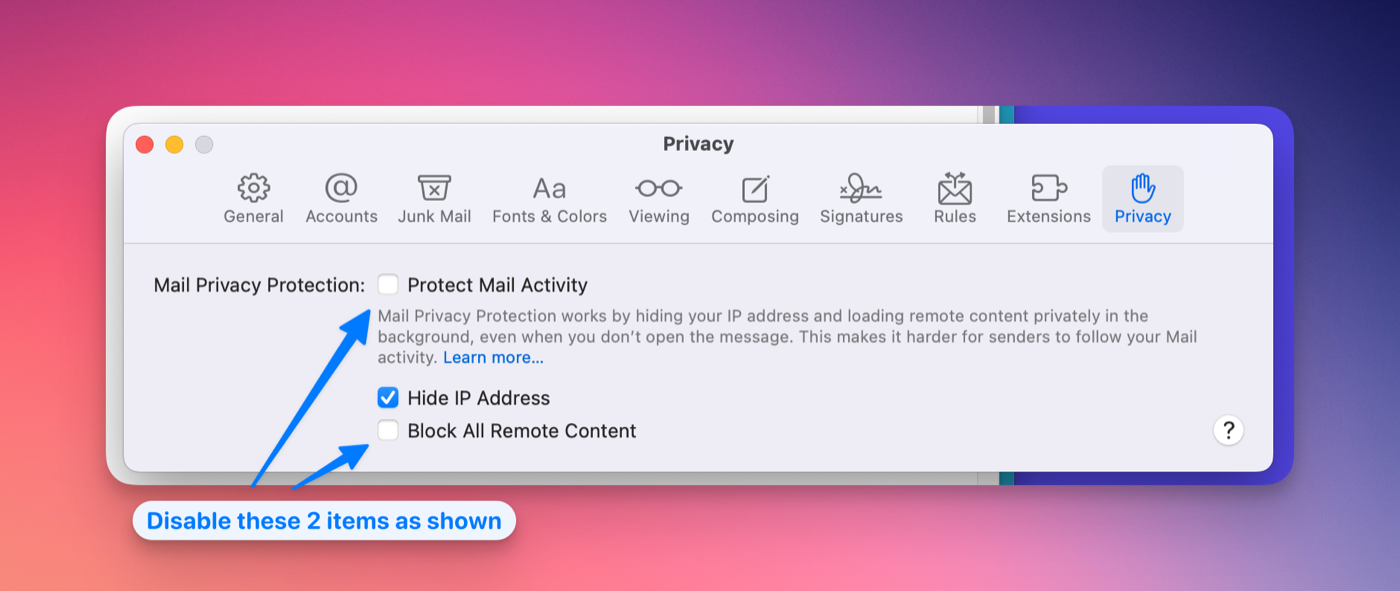
On older versions of macOS without a Privacy tab, go to Mail > Preferences > Viewing and check Load remote content in messages instead.
Turn off Limit IP Address Tracking
If Mail says something like "Your network settings prevent content from loading privately," your network is blocking the images:
- Open System Settings on your Mac.
- Type Limit IP address tracking in the search field and click the result.
- Turn off Limit IP address tracking for the network you're using.
- Quit Mail and open it again.
On iPhone and iPad
Open the Settings app, go to Mail > Privacy Protection (under Apps > Mail on newer versions of iOS), and turn off Protect Mail Activity and Block All Remote Content.
Still not working?
- Edit your signature and upload your logo or avatar again, and replace your banner if you use one. Then save and reinstall the signature.
- If only the social icons are missing, switch to a different Social Icon Style on the Style tab and reinstall. See changing your social icon style and size.
- Make sure the signature was installed correctly. See how to add your signature to Apple Mail and why your signature looks wrong in Apple Mail.
If none of this helps, email us at support@htmlsig.com, or contact Apple Support about your Mail settings.