To change your social media icons, open the Style tab in the signature editor. Use Social Icon Style to pick the icon shape and color, and Social Icon Size to make them smaller or larger.
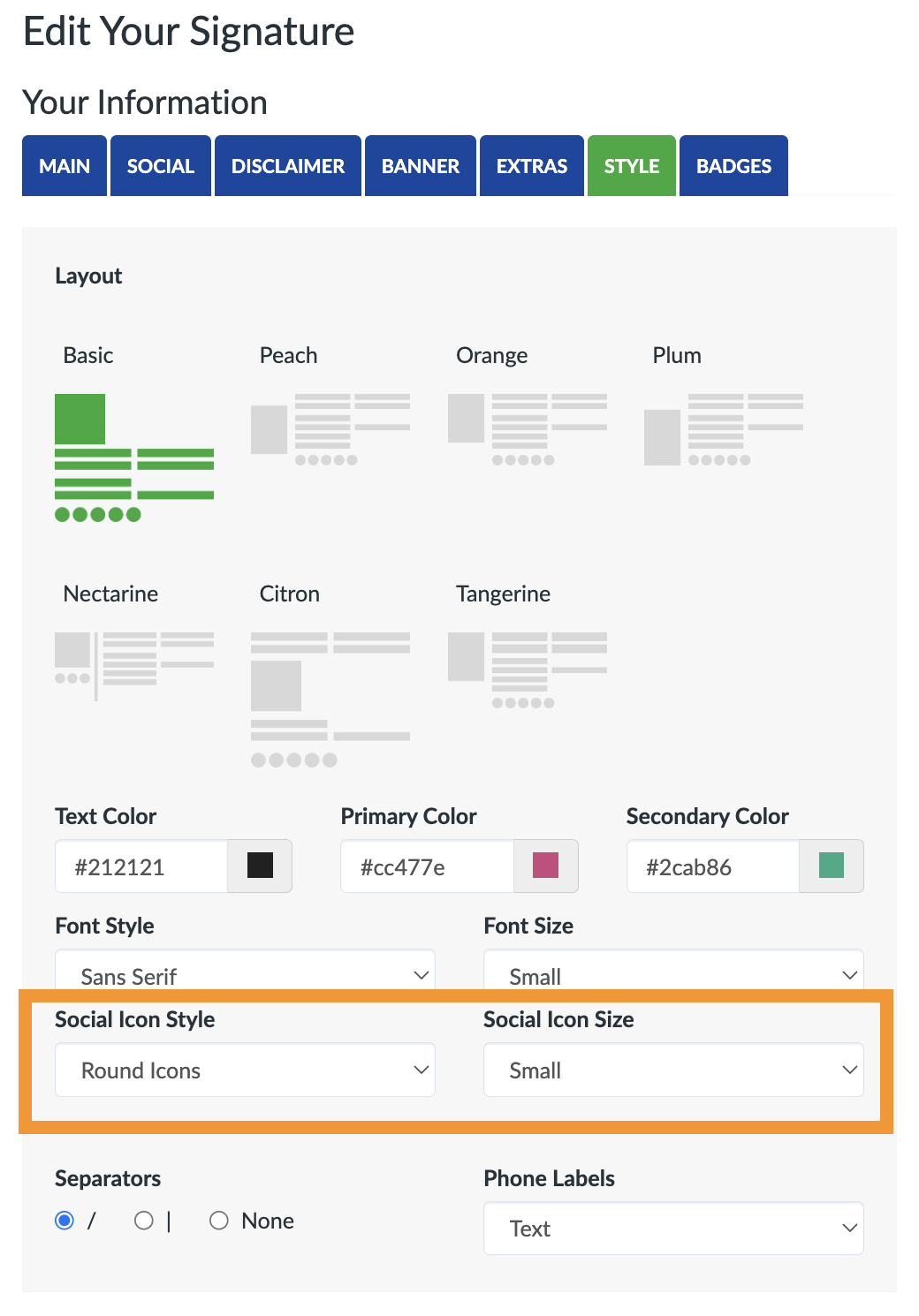
How to change your icons
- Open the signature editor and click the Style tab.
- Pick an option from the Social Icon Style menu.
- Pick an option from the Social Icon Size menu.
- Check the preview, then click Create Signature (or Update Signature) to save.
Icon styles
- Round Icons: circular icons in each network's brand color. This is the default.
- Square Icons: square icons in brand colors.
- Rounded Icons: squares with rounded corners.
- Polygon Icons: geometric, multi-sided icons.
- Grey Icons: understated gray icons that work with any color scheme.
Every icon in your signature uses the same style.
Icon sizes
- Small: 16 × 16 pixels
- Medium: 24 × 24 pixels
- Large: 32 × 32 pixels
Icons only appear for the networks you've added a link for on the Social tab. See How to add social media links to your signature.