To add your htmlsig signature to the new Outlook for Windows or Outlook on the web, copy it from your signature page, then go to Settings > Account > Signatures, click Add signature, paste it in and click Save.
Why you can't use a signature file with the new Outlook
The new Outlook for Windows and Outlook on the web store signatures in the cloud and sync them with your mailbox. Unlike classic Outlook, any local signature file gets overwritten when your account syncs, so you need to paste your signature into Outlook's built-in editor instead.
Step 1: Copy your signature
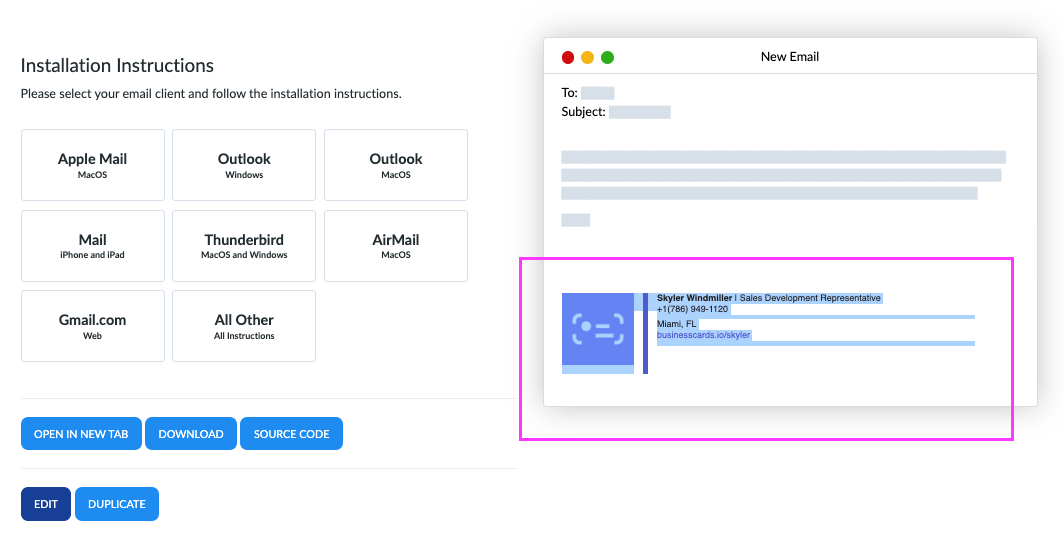
- Open your signature in htmlsig. You can find all of your signatures on the Signatures page.
- Click Open in New Tab. Your signature opens on its own in a new window.
- Select the whole signature (Ctrl+A on Windows, Cmd+A on a Mac) and copy it (Ctrl+C or Cmd+C).
Step 2: Add it to Outlook
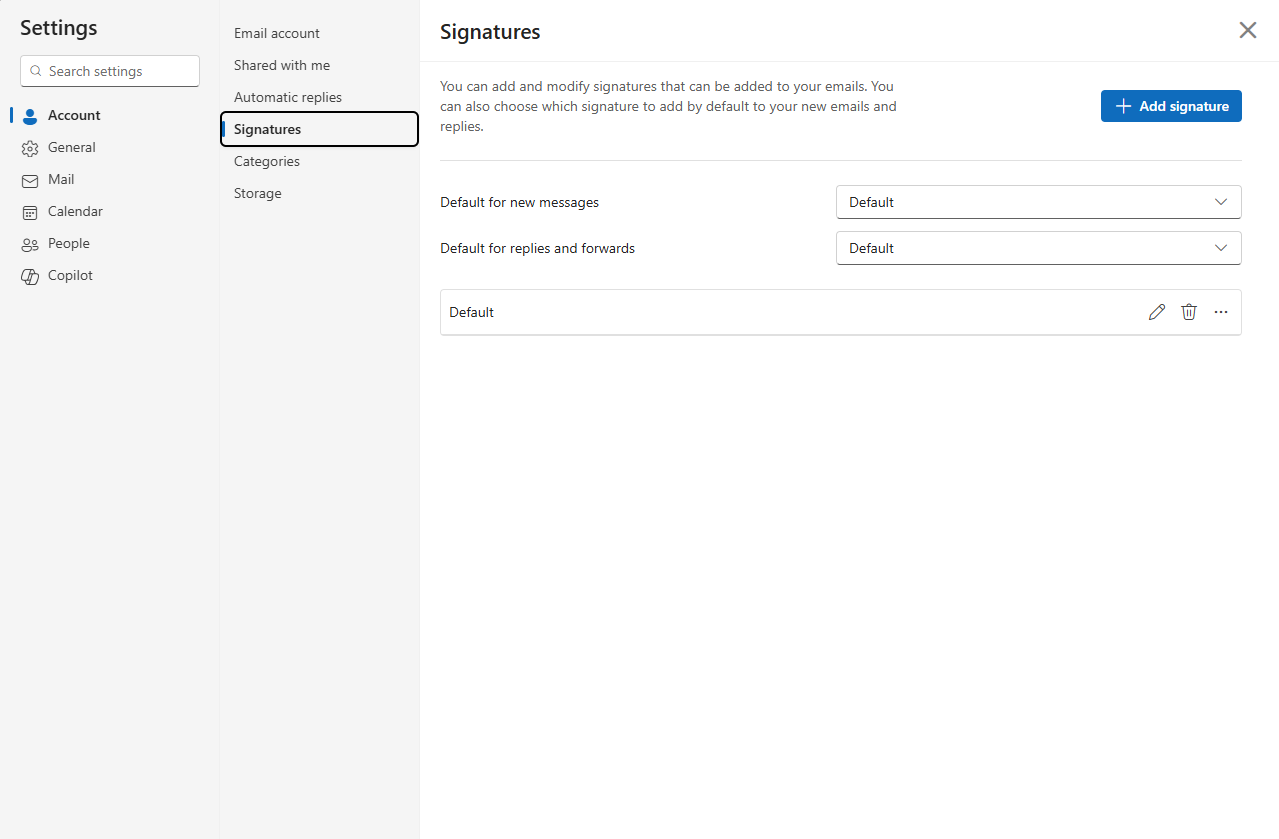
- In Outlook, click the Settings gear icon in the upper-right corner.
- Go to Account > Signatures. You can also type "signature" in the Search settings box.
- Click Add signature and give your signature a name.
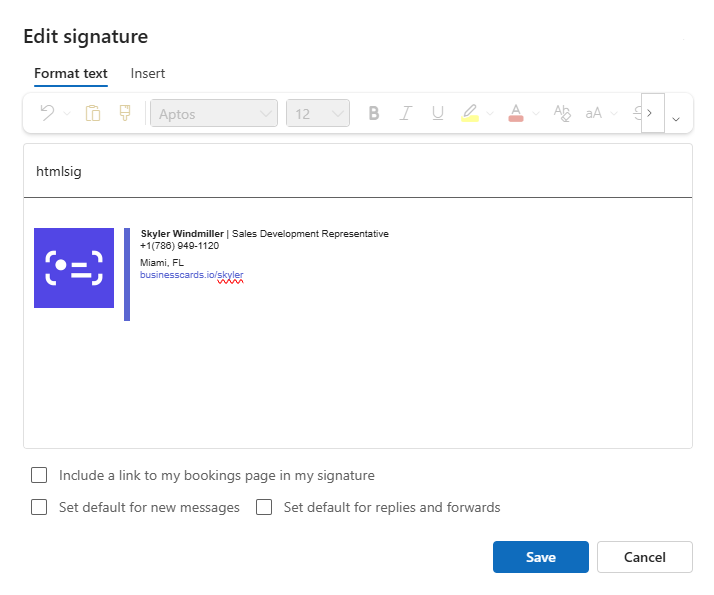
- Click into the editor box and paste your signature (Ctrl+V or Cmd+V).
- Check that everything came through. Images, fonts or links occasionally don't copy correctly, so fix any spacing and re-add anything that's missing.
- Optionally, check Set default for new messages and Set default for replies and forwards so your signature is added automatically.
- Click Save.
Using classic Outlook 2016 or older? See how to add a signature to Outlook 2003–2016. Signatures are stored separately in each Outlook app, so you'll also need to add yours to Outlook for Mac or Outlook on your iPhone if you use them.