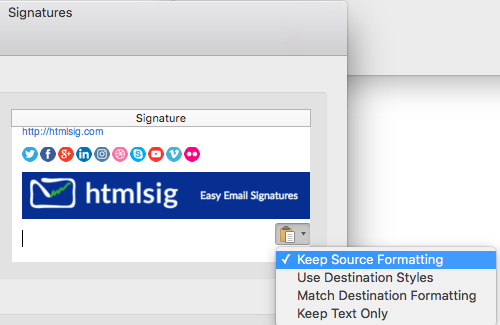
To add your signature to Outlook 2016 for Mac, copy it from htmlsig, then go to Outlook > Preferences > Signatures, click + and paste it in. These steps are for the older (legacy) Outlook for Mac only.
Outlook 2016 for Mac is no longer supported by Microsoft, and legacy Outlook for Mac is being phased out. If you use the current version of Outlook for Mac, follow How to add your signature to Outlook for Mac instead. Not sure which one you have? Choose Outlook > About Outlook from the menu bar to see your version.
Add your signature to Outlook 2016 for Mac
- Open your signature on htmlsig.com in Chrome or Firefox and click Open in New Tab. Avoid Safari, which can break the layout when you copy.
- Select the whole signature and copy it (Cmd + C).
- Open Outlook and choose Outlook > Preferences from the menu bar.
- Click Signatures, then click the + button to create a new signature.
- Give the signature a name, then click into the signature box and paste (Cmd + V).
- Close the window to save it.
- Back in the Signatures window, use Choose default signature to pick your new signature for new messages and replies.
Keep your formatting when you paste
In some versions of Outlook 2016, a small clipboard icon appears after you paste. Click it and choose Keep Source Formatting so your signature keeps its layout, colors and images.