To change your signature's colors and font, open the Style tab in the signature editor. There you can set three colors (text, primary and secondary), pick a font, and choose a font size.
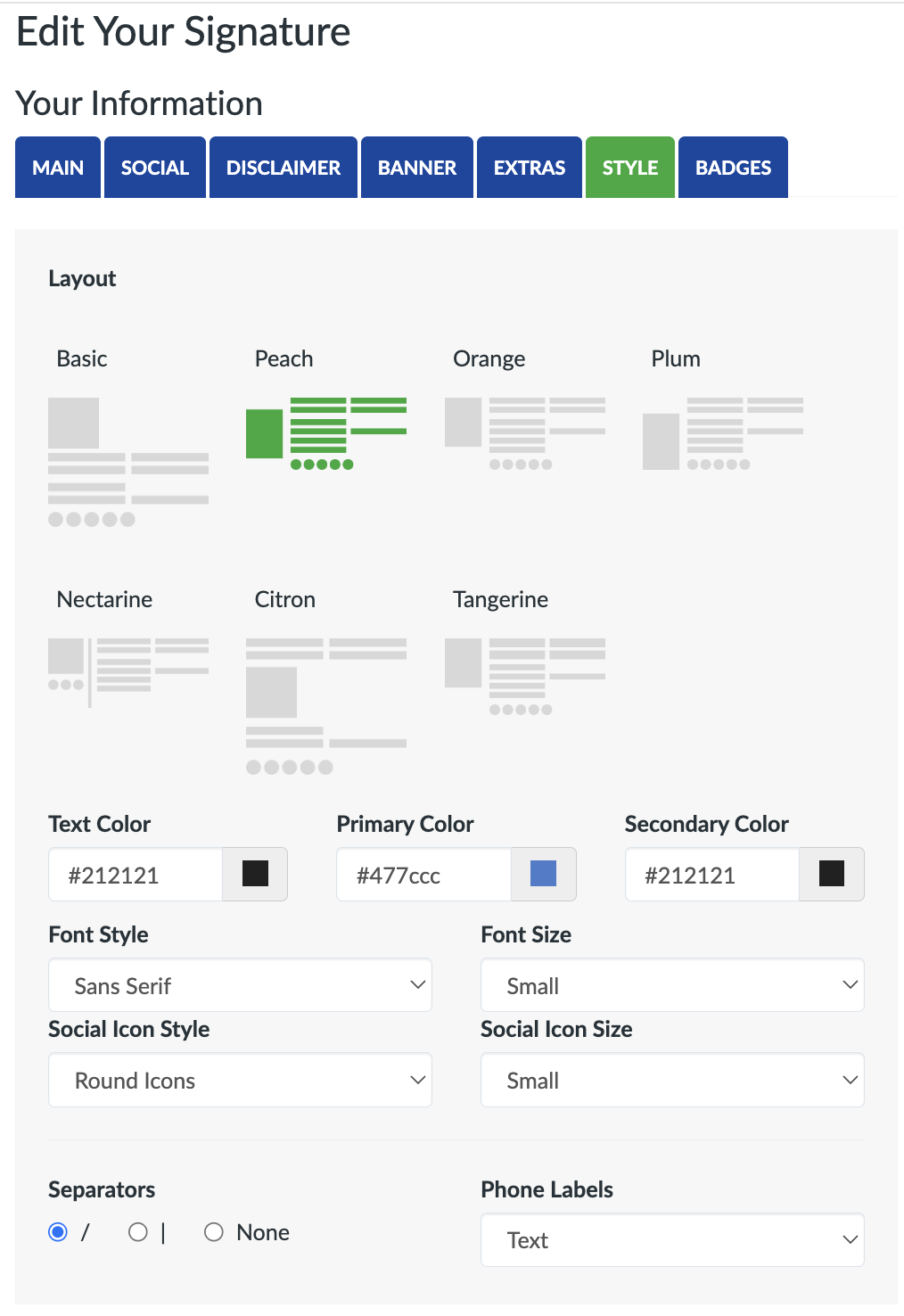
Colors
- Text Color: your regular text, such as your job title, phone numbers and address. Default is
#212121. - Primary Color: your links, meaning your email address and website. Default is
#477ccc. - Secondary Color: your name and company name, which are shown in bold. Default is
#212121.
Type a hex color code (like #cc477e) into the box, or click the color swatch next to it to pick one. The preview updates as you go.
Font style
Pick a font from the Font Style menu. You can choose from 25 fonts, including Sans Serif, Serif, Arial, Calibri, Tahoma, Verdana, Georgia, Garamond, Times New Roman and Courier New.
Email signatures can only use fonts installed on the reader's device. Each option includes fallback fonts, so if someone doesn't have your chosen font, their email app shows a similar one. For the most consistent look, stick with common fonts like Sans Serif, Arial, Verdana or Georgia.
Font size
The Font Size menu has three options:
- Small: 10px
- Medium: 12px
- Large: 14px
The Citron and Tangerine layouts show your name a bit larger than the rest of the text.
What these settings don't change
The disclaimer always uses a small, dark gray Helvetica/Arial style so it stays unobtrusive, whatever colors and font you pick. Social icons come in their own color styles, which you can change separately. See How to change your social media icon style and size.
When you're happy with the result, click Create Signature (or Update Signature) to save it.