To change your signature's layout, open the Style tab in the signature editor and click one of the thumbnails under Layout. The preview updates right away, and you can switch between layouts as often as you like before saving.
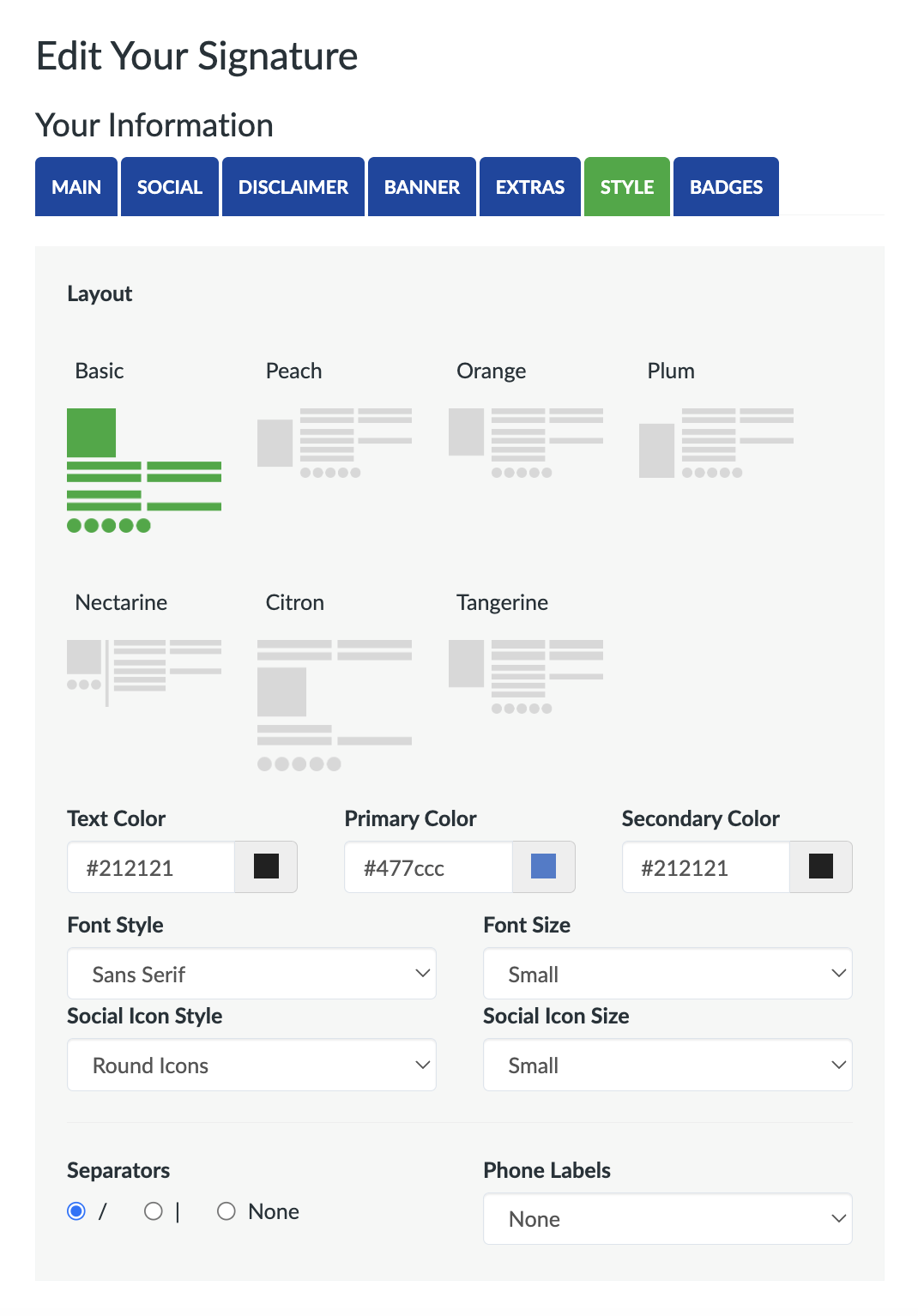
How to change the layout
- Open the signature editor and click the Style tab.
- Under Layout, click the thumbnail you want. The selected one turns green.
- Check the preview, then click Create Signature (or Update Signature) to save.
Which layouts are available?
- Basic: logo on top, with your details and social icons stacked underneath. This is the default.
- Peach: logo on the left, vertically centered next to your details.
- Orange: logo on the left, lined up with the top of your details.
- Plum: logo on the left, lined up with the bottom of your details.
- Nectarine: a narrow column on the left with your logo and social icons, separated from your details by a vertical line in your primary color.
- Citron: your name and title first, then your logo, then the rest of your details. Your name is shown in a larger font.
- Tangerine: logo on the left with your details stacked on the right. Your name is shown in a larger font.
Your logo is the same size in every layout. If you don't use a logo, the layouts look much more alike, so Basic is usually the simplest choice.
To change colors and fonts as well, see How to change the colors and fonts of your signature.