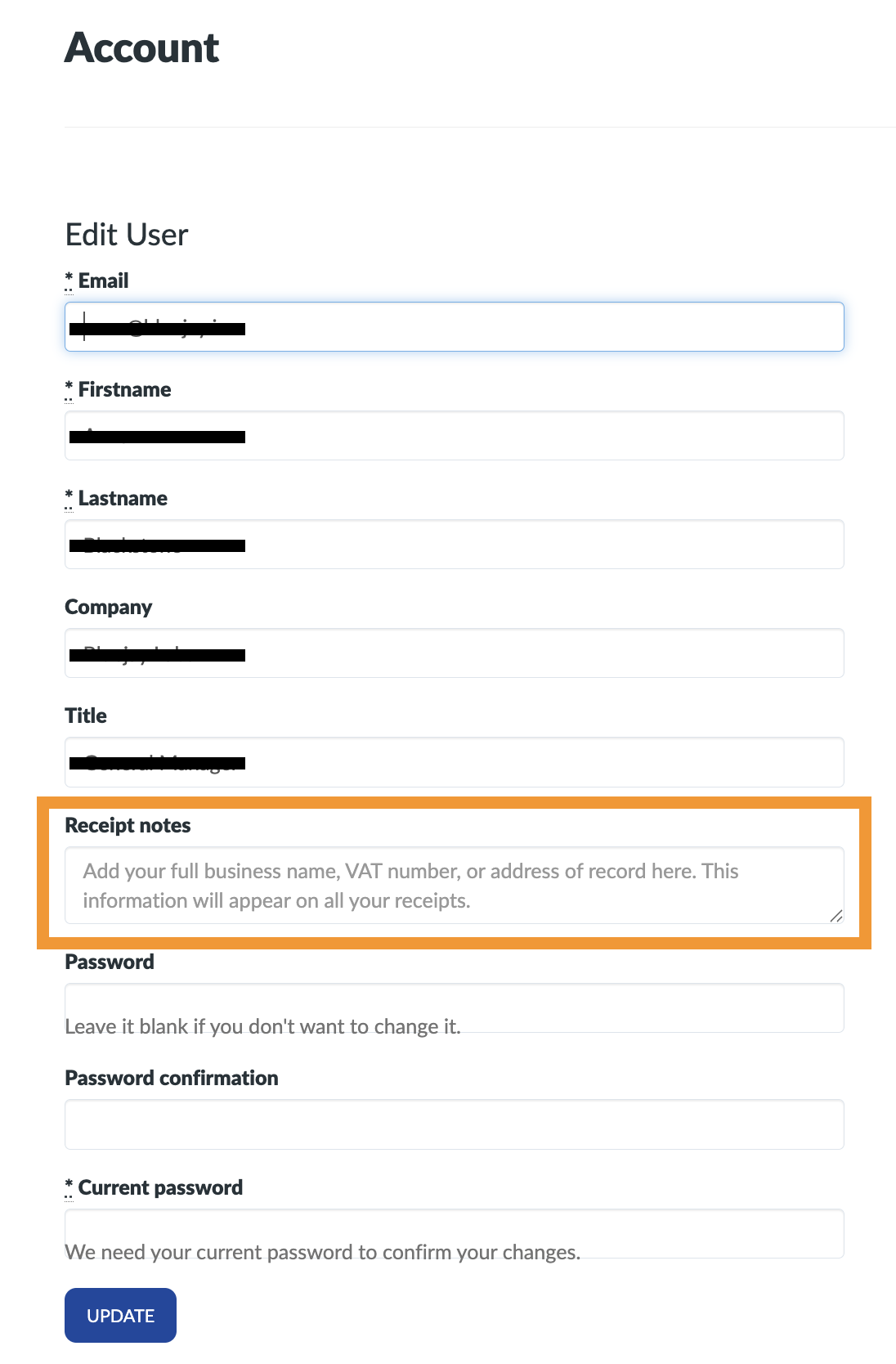
To add your VAT ID or company details to your receipts, go to your Account page, type them into the Receipt notes field, and click Update. Whatever you enter appears on all your receipts.
How to add your VAT ID or company info
- Log in and click Account in the top menu (or go straight to your account page).
- In the Receipt notes field, enter the details you need, such as your full business name, VAT number, and address of record.
- Enter your password in the Current password field. It's required to save any change on this page.
- Click Update.
Where it shows up
Your notes appear under Additional Info on every receipt, including receipts for payments you made before adding them. You can open your receipts from your billing history.
The information you add is shown on your receipts as you entered it. It doesn't change the amount charged or how the receipt was issued.