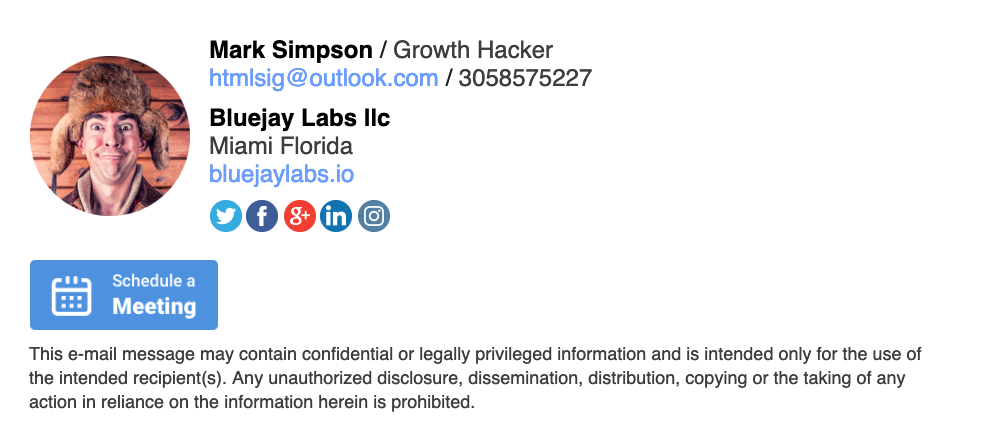
You can add a Schedule a Meeting button to your signature that links to your Calendly, HubSpot or other booking page. Paste your booking URL into the Calendar scheduling URL field on the Extras tab of the signature editor.
How to add a calendar booking button
- Copy your booking link from your scheduling tool (for example
https://calendly.com/your-name). - Go to your dashboard and click the edit (pencil) icon next to your signature.
- Open the Extras tab and scroll down to Calendar link button.
- Paste your link into the Calendar scheduling URL field. The button appears in the preview as soon as you click out of the field.
- Save your signature, then reinstall it in your email client.
The button shows up below your contact details and social icons:
Any scheduling tool works, as long as it gives you a public booking link. If you leave out https://, we add it for you.
Removing the button
To remove the button, clear the Calendar scheduling URL field, save, and reinstall your signature.
Clicks on the button are counted on your signature stats page, unless you've turned off link tracking. The same Extras tab also has app store buttons and a WhatsApp message button.