To see click stats for a signature, go to your dashboard and click the chart icon (View Stats) next to that signature. The stats page shows how many times each link in your signature was clicked, and only you can see it while logged in.
How to open the stats page
- Log in and go to your dashboard (or the Signatures page).
- Find the signature in the list. The Clicks column shows its total clicks.
- Click the chart icon in the actions column (hover over it to see View Stats).

What the stats page shows
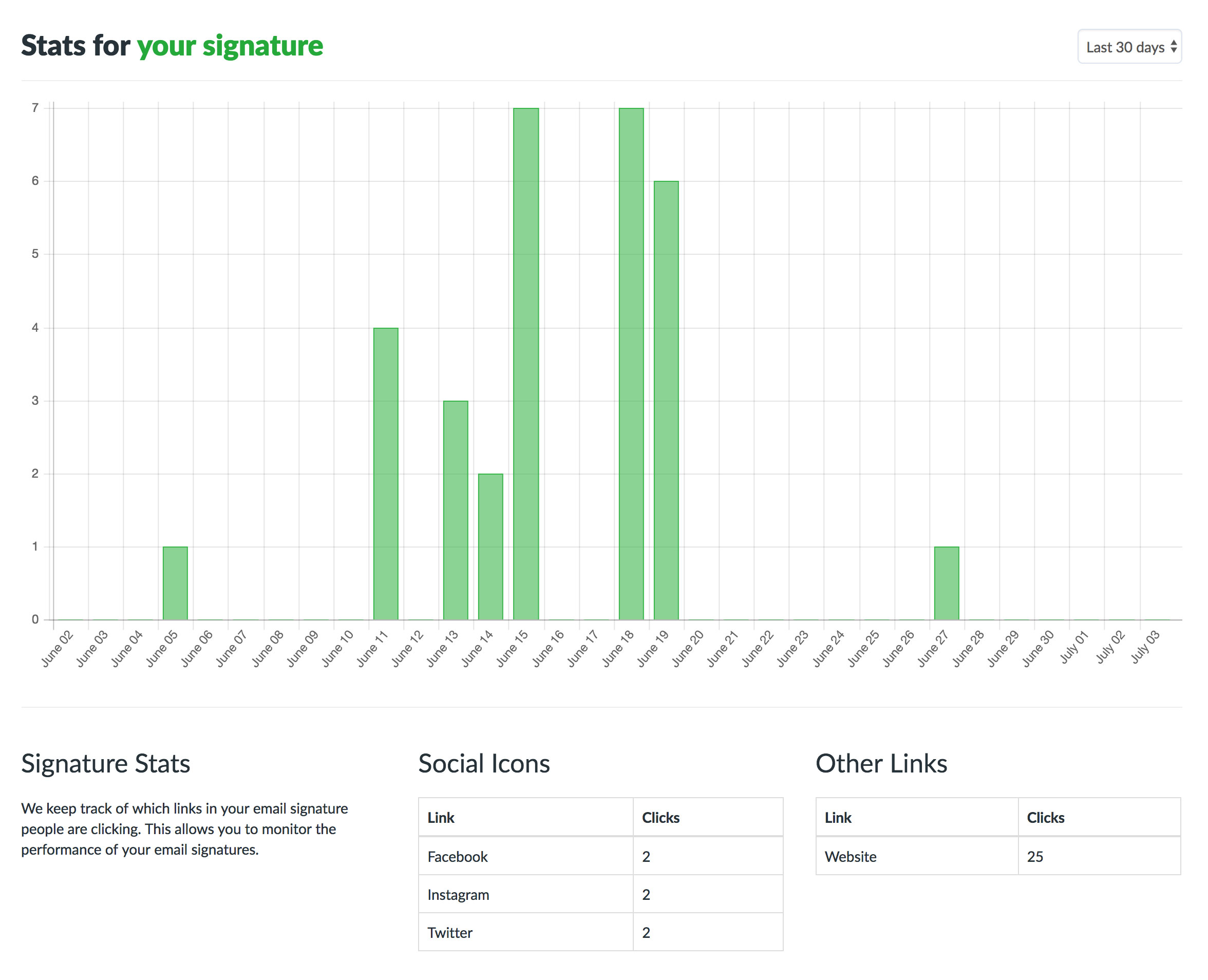
- A bar chart of clicks over time. Use the menu in the top-right corner to switch between Today, Last 7 days, Last 30 days and Last 365 days (the default).
- A Social Icons table with clicks per social network.
- An Other Links table with clicks on your website, banner and buttons.
Which links are tracked?
- Your website link, and your logo or avatar when it links to your website
- Social media icons
- Your banner link
- App store, calendar booking and WhatsApp buttons
Your email address and phone numbers aren't tracked.
Why don't I see any clicks?
- Link tracking is turned off. If you disabled it in the Extras tab, no clicks are recorded. See how to turn off link tracking to switch it back on.
- Your installed signature is out of date. If you changed the tracking setting or added new links after installing, reinstall the signature so your email client has the current links.
- Nobody has clicked yet. The page shows a message when there have been no clicks in the past year.