To turn off link tracking, open your signature in the editor, go to the Extras tab and set Disable Link Tracking? to Yes. Then save the signature and reinstall it in your email client.
Why do my signature links go through htmlsig.com?
By default, the links in your signature point to a short htmlsig.com address (like htmlsig.com/t/…) that instantly redirects to the destination you entered. That's how we count clicks and show them on your stats page. Your recipients still land on the right page.
How to turn off link tracking
- Go to your dashboard and click the edit (pencil) icon next to the signature.
- Open the Extras tab.
- Under Link Tracking, set Disable Link Tracking? to Yes.
- Save your signature.
- Reinstall the signature in your email client so it picks up the new, direct links.
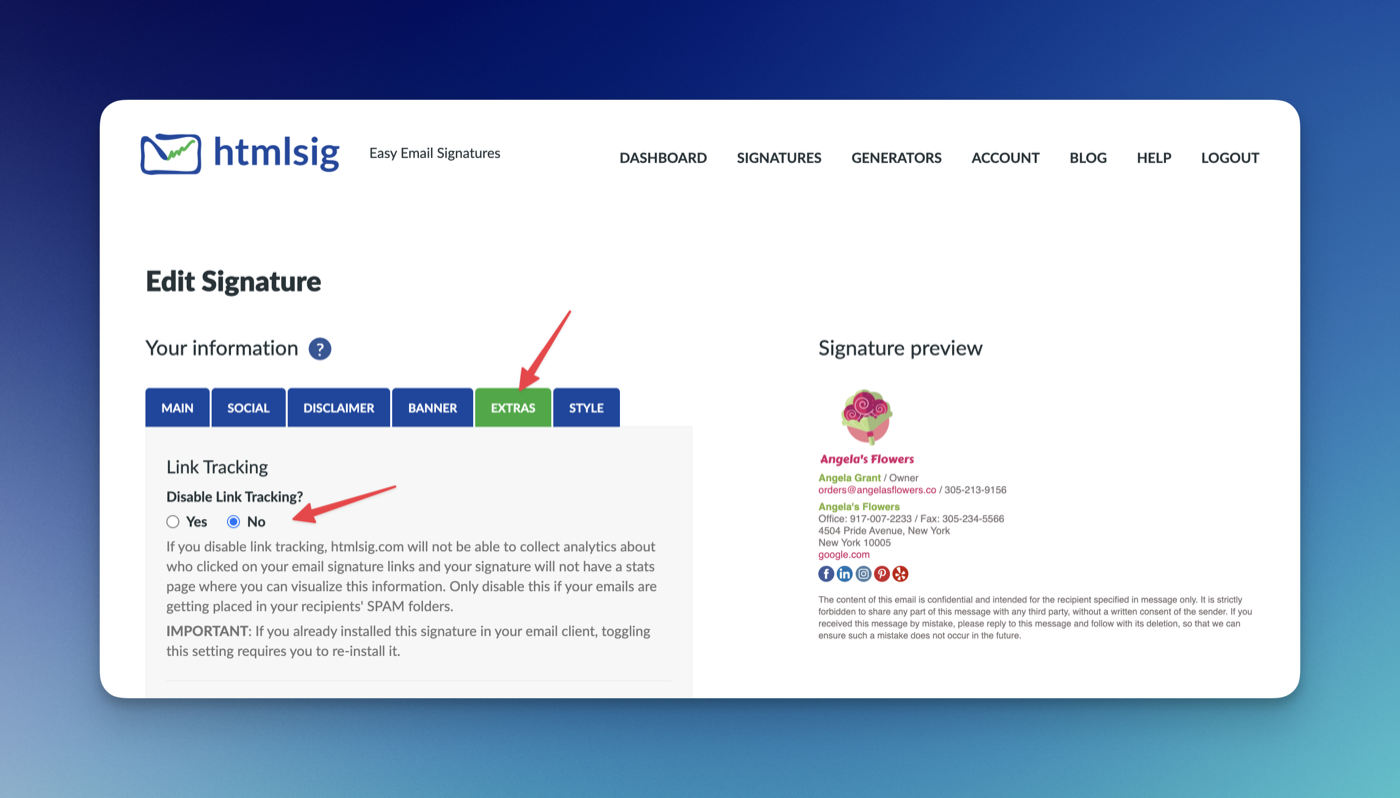
Important: the signature already installed in your email client still contains the old tracked links. The change only takes effect after you copy and install the signature again.
What happens when tracking is off?
- Every link in the signature points straight to its destination.
- New clicks are no longer counted, so your stats page won't show any new activity for that signature.
- The setting is per signature. Your other signatures keep tracking unless you turn it off for them too.
We recommend turning tracking off only if your emails are landing in recipients' spam folders. You can switch it back on at any time by setting the option to No and reinstalling.